Transcribe Audio to Text Free: No Sign-Up, No Uploads
Table of Contents
How browser speech recognition actually works
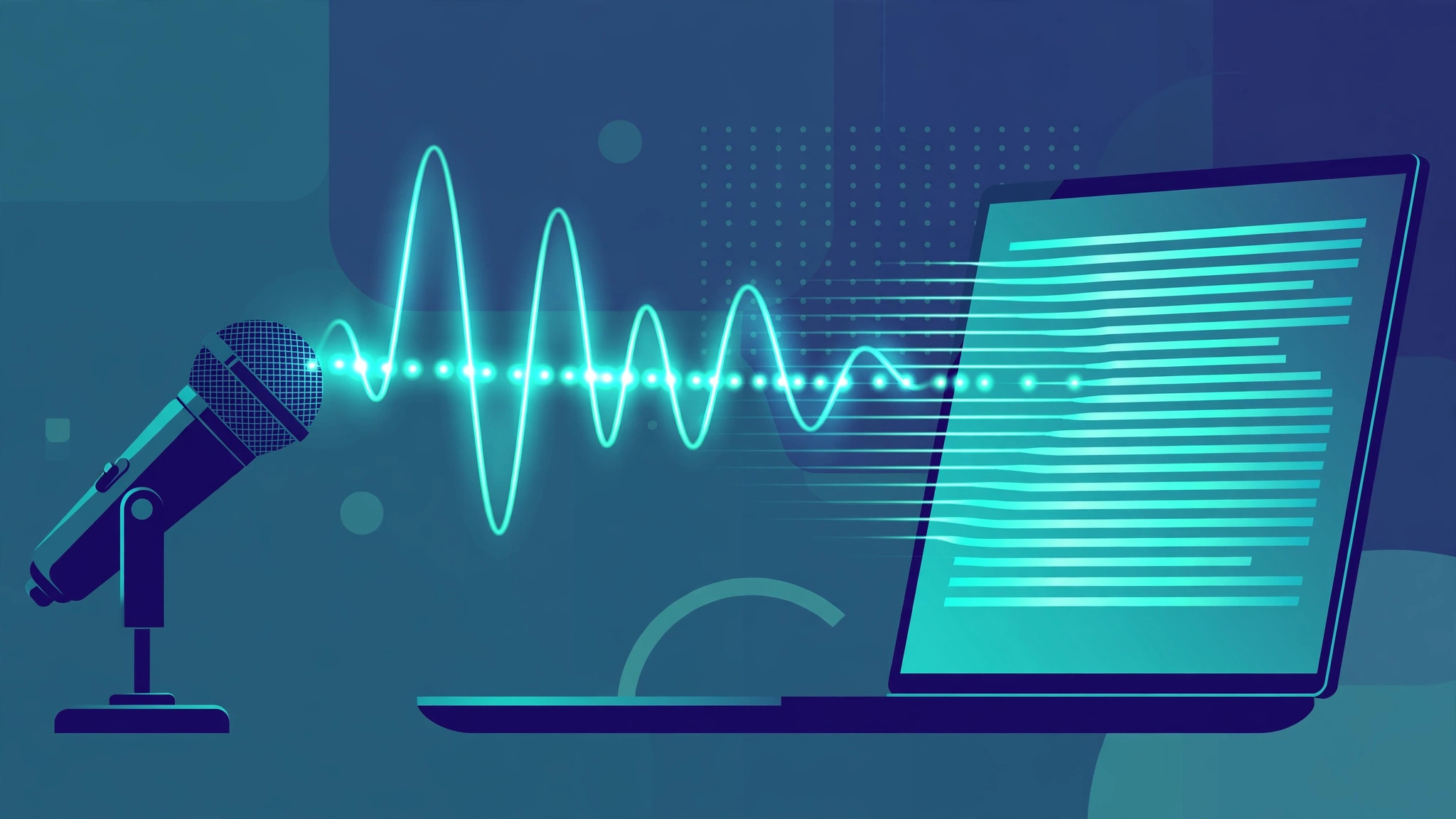
Modern browsers include a built-in feature called the Web Speech API. Its speech recognition part listens through your microphone and converts what you say into text in real time. Click start on a transcription page, allow microphone access, and your browser does the rest.
One honest caveat before we go further. In most browsers — Chrome included — the recognition engine lives on the browser maker's servers, so you need an internet connection for it to work. Newer Chrome versions are starting to offer on-device recognition, but cloud processing is still the default. What a client-side tool does differently is that nothing is uploaded to Toolenix's servers and nothing is stored there. Your words go through your own browser; no account, no file sitting in someone's database.
Support is broad but not universal. Speech recognition works in Chrome, Microsoft Edge, and Safari (macOS 14.1 and later, iOS 14.5 and later). Firefox keeps it behind a developer flag, so it won't work out of the box there. If the microphone button on a transcription page does nothing, your browser is the first suspect.
How to turn speech into text in about a minute
Here is the full walkthrough. It assumes you are on Chrome or Edge, where this works best.
1. Open the transcriber. Load Toolenix's Speech-to-Text Transcriber page. Nothing installs; the whole thing runs in the tab.
2. Allow microphone access. Click the start button and your browser will pop up a permission prompt. Click "Allow." If you previously blocked the mic for the site, Chrome and Edge let you change this by clicking the little microphone or lock icon in the address bar.
3. Position yourself. Sit 15 to 30 centimeters from the mic, or use earbuds with a built-in microphone. A cheap pair of earbuds will often beat an expensive laptop mic across the room, because distance matters more than brand.
4. Speak. Talk at your normal pace — slightly slower than conversation speed is ideal. The recognizer shows interim results as you speak, then settles on a final version of each phrase a moment later.
5. Stop and clean up. Click stop when you're done and fix punctuation and the occasional wrong word. The engine gets the words; it can't always tell which "there" you meant.
6. Export. Copy the transcript to your notes app, document, or email. Nothing about the session stays on the site.
One practical tip: for longer material, dictate in chunks of two to three minutes. Accuracy holds up better, and editing small blocks beats reviewing a wall of text.
The worked example: a 20-minute lecture
Let's put real numbers on this. Meet Sara, a second-year biology student. Her lecturer speaks at a normal teaching pace — roughly 140 words per minute — and the lecture runs 20 minutes. That's about 2,800 words of content.
Sara has two options. Option one: she types the notes herself at a decent 45 words per minute. 2,800 divided by 45 gives about 62 minutes of nonstop typing — realistically 75 minutes with pauses and corrections.
Option two: she plays the lecture back and speaks her notes into the transcriber, or she simply talks through her understanding of the material afterward. Speaking at the same 140 words per minute takes about 20 minutes. Then she spends 10 to 15 minutes cleaning up punctuation and the handful of terms the recognizer mangled ("Krebs cycle" sometimes becomes "crab cycle" — worth a check).
Final score: typing gives her a finished set of notes in roughly 60 to 75 minutes. The speech route takes 30 to 35 minutes. She saves half an hour on a single lecture, and she also engages with the material twice — once listening, once speaking it back — which helps her remember it. Three lectures a week across a semester adds up to 20-plus hours saved.
The same math applies to the podcaster drafting show notes. Dan records a 30-minute episode and talks his summary into the transcriber: 15 minutes for about 2,000 words of show notes, plus ten minutes of editing. He finishes before his tea goes cold.
What it's genuinely good for
Dictation isn't a full transcription service. It shines in a specific set of jobs:
- Lecture and meeting notes. Talk through what you heard while it is fresh. Ten minutes of speech beats an hour of half-remembered typing.
- First drafts. Blog posts, essays, scripts, emails. Saying a rough draft out loud is faster and often more natural-sounding than staring at a blank page.
- Show notes and summaries. Creators can describe an episode or video verbally and have a written base to polish.
- Accessibility. For anyone with repetitive strain injury or arthritis, voice input can be the difference between writing and not writing.
Where does it struggle? Multi-speaker conversations where people talk over each other — the engine doesn't label speakers reliably and crosstalk turns into soup. Accuracy also drops with whispering, speech far from the mic, heavy dialects, proper nouns, and technical jargon. Plan a quick manual pass for those; it only takes a few minutes.
Mistakes to avoid
Using it in a noisy room. Background noise is the number one accuracy killer — worse than a bad microphone. A TV in the next room, a fan blowing across the desk, keyboard clatter: the recognizer hears all of it. Move to a quieter spot or shut the door. If your fan noise is unavoidable, pointing the mic away from it helps more than you'd expect.
Mumbling or racing through it. The engine expects ordinary speech. Mumbling gets you guesses; rapid-fire talking gets you dropped words. Slow down just a touch, keep your distance from the mic consistent, and pause between sentences. Small pauses also give the engine's final results time to settle.
Running it in the wrong browser. If you open the page in Firefox and nothing happens when you click start, that's not a bug — Firefox doesn't ship speech recognition enabled. Switch to Chrome or Edge and try again. Similarly, embedded in-app browsers (opening a link inside some apps) can behave oddly; use a real browser.
Dictating straight into a document without editing. Even on a good run, expect a few percent word errors plus punctuation that needs sorting. Skim the transcript once — ten minutes of proofreading is far less than typing it all from scratch, but skip this step and the errors will find their audience.
Ignoring the permission prompt. If you click "Block" on the microphone request by habit, the page can't hear you. Fix it through the lock or mic icon in the address bar, reload, and allow it. The most common mic-tool problem there is, fixed in ten seconds.
A note on privacy
Because this is a no-sign-up, client-side tool, there is no account tied to your words and no transcript saved on a server. Two things are still true, though. First, your browser's recognition engine typically processes the audio on the browser maker's servers (Chrome sends it to Google's), so for genuinely sensitive material — legal, medical, confidential business — you may prefer Chrome's on-device option or a fully offline app. Second, if you're transcribing someone else's voice, get their consent; it's their words, not just your audio.
Try it free — no sign-up
Run the numbers yourself in seconds. Everything happens in your browser.
Open the Speech-to-Text TranscriberFrequently Asked Questions
Is it really free?
Yes. The Web Speech API is built into your browser at no cost, and Toolenix's Speech-to-Text Transcriber page uses it directly — no account, no trial limits, no payment screen anywhere in the process.
Do my audio files get uploaded anywhere?
Toolenix receives and stores nothing; everything happens in your browser tab and no file of yours ever leaves for Toolenix's servers. One caveat: the browser's own recognition engine (in Chrome, Google's servers) processes your speech to generate the text, and newer Chrome versions are beginning to offer on-device recognition as an alternative.
Which browsers work?
Chrome, Microsoft Edge, and Safari support speech recognition. Safari needs macOS 14.1 or iOS 14.5 or newer. Firefox keeps the feature behind a developer flag and doesn't offer it by default. If the start button does nothing, try Chrome first — it's the most reliable option.
Why does the microphone button do nothing?
Usually one of three things: you're on an unsupported browser (most often Firefox), microphone permission was blocked, or the page was opened inside another app's mini-browser instead of a real one. Check the mic icon in the address bar, allow access, and reload.
How accurate is it?
In a quiet room with clear speech at a normal pace, results are typically very good — most users only correct a few words per paragraph. Accuracy falls with background noise, distance from the mic, whispering, strong accents, or overlapping speakers. Always budget a few minutes for a proofreading pass.
Can it transcribe a recorded audio file?
The tool listens through your microphone in real time, so it's designed for live speech, not file uploads. A practical workaround: play the recording through your speakers in a quiet room and let the mic pick it up. It won't match a direct file feed, but for a podcast clip or voice memo it usually produces a usable draft.