JPG vs PNG vs WebP: Which Image Format to Use
Table of Contents
Take one photo — a 12-megapixel landscape shot from a phone, 4032×3024 pixels. Save it three ways and watch what happens: as a high-quality JPG it's about 3.5 MB. As a PNG it's roughly 14 MB — four times bigger. As a WebP it's around 2.4 MB, a third smaller than the JPG, and you'd need a magnifying glass to spot the difference. Same photo, same pixels on screen, wildly different files. The format you pick is quietly deciding your page speed, your storage bill, and sometimes your image quality.
Most people choose formats by habit: JPG for photos because that's what the camera gave them, PNG for everything else because someone once said it's "higher quality." Both habits are half-right and half-expensive. The real answer depends on what the image is — a photo, a logo, a screenshot — and where it's going. Here's the comparison with actual numbers, and a clear winner for each situation.
The same image, three formats: the numbers
Let's put concrete numbers on it, because the differences are bigger than most people guess. Using that 4032×3024 landscape photo:
- JPG (quality 85): ~3.2 MB. The long-standing default for photos. Lossy compression — it throws away fine detail your eyes mostly won't miss.
- PNG: ~13.8 MB. Lossless — every pixel perfect, and every pixel paid for in file size. Four times the JPG.
- WebP (quality 85): ~2.2 MB. Also lossy, but a newer, smarter codec. About 30% smaller than the equivalent JPG.
Now the same test on a different image — a simple logo, flat colors, sharp edges, with transparency:
- JPG: ~180 KB, and it looks bad — muddy artifacts around the edges, and the transparency is gone (JPG doesn't do transparency; it fills it white).
- PNG: ~95 KB, pixel-perfect, transparency intact.
- WebP: ~60 KB, transparency intact, visually identical to the PNG.
Notice what happened: the winner flipped completely. For the photo, PNG was the disaster (14 MB for no visible gain). For the logo, JPG was the disaster (artifacts, no transparency). The format isn't good or bad in the abstract — it's matched or mismatched to the content. That's the whole game.

JPG: the photograph's best friend
JPG (or JPEG — same thing) was designed in 1992 for exactly one job: compressing photographs. It exploits how human vision works, throwing away subtle color detail and fine high-frequency noise that your eyes glide over in a photo of a sunset, a face, or a street scene. At quality settings of 80–90, the result is visually near-identical to the original at a tenth of the file size.
Where JPG wins: photographs, complex images with gradients and texture, anything from a camera. Where it loses: anything with sharp edges and flat color (logos, text, screenshots, line art) — the compression smears edges into visible halos. And anything needing transparency — JPG simply doesn't support it.
The quality setting matters more than people think. The difference between JPG quality 95 and quality 85 is roughly 40% of the file size and nearly zero visible difference on a photo. The difference between 85 and 60 is visible if you look closely — blocky patches in skies and gradients. For web use, 80–85 is the sweet spot that the entire industry has converged on. Exporting at quality 100 "to be safe" just doubles your file size for insurance you'll never claim.
One more JPG quirk: it's lossy every time you save. Open a JPG, edit it, save it as JPG again, and it compresses the already-compressed data — generation loss. Edit from the original or a lossless copy, and only export the final JPG once.
PNG: when every pixel must be perfect
PNG is lossless — what goes in is exactly what comes out, pixel for pixel. That makes it the format of choice for images where precision matters: logos, icons, screenshots, diagrams, text-heavy graphics, and anything with transparency. It also makes it a terrible choice for photographs, as our 14 MB landscape demonstrated. Lossless compression is brilliant at flat colors and sharp edges (a logo compresses beautifully) and hopeless at photographic noise (every grain of sensor noise is "detail" it must preserve perfectly).
PNG's killer feature is transparency — specifically, full alpha transparency with smooth edges. A logo with a transparent background that sits cleanly on any page background: that's PNG's home turf, and the reason half the images on the web are PNGs that should probably be WebPs by now.
Where PNG wins: logos, icons, screenshots, graphics with text, anything needing transparency, anything you'll edit again later (it's a perfect archival format for graphics). Where it loses: photographs and photo-like images, where it produces files 3–5x larger than necessary with zero visible benefit.
A common mistake: exporting photos as PNG "for quality." The quality is identical to a good JPG on screen — your monitor can't display "more perfect" than the JPG already shows — but the file is four times bigger, your page loads four times slower, and mobile visitors on limited data pay for your caution. PNG quality is real; it's just wasted on photos.
WebP: the modern middle ground
WebP is Google's 2010 answer to "why are we still using 1992's photo codec?" It does everything JPG does, about 25–35% smaller, and everything PNG does (including transparency and even animation), also smaller. On paper, it's the format that ends the debate: photos compress better than JPG, graphics compress better than PNG, transparency works, and quality is excellent.
The catch was support. For a decade, Safari refused to play along, which meant WebP was a non-starter for any site with iPhone visitors — i.e., every site. That era ended in 2020 when Safari 14 added WebP support. In 2026, WebP works in every modern browser, covering essentially 100% of real traffic. The compatibility objection is dead.
So why isn't everything WebP already? Inertia, mostly, plus two legitimate footnotes. First, some older software (old CMS plugins, ancient email clients, a few social platforms' uploaders) still chokes on WebP occasionally — always test uploads on the platforms you use. Second, there's an even newer codec, AVIF, that compresses ~20% better than WebP — but AVIF encoding is slow and support, while growing, isn't yet universal. WebP is the safe modern default; AVIF is the enthusiast's choice.
For most people in 2026, the practical move is: WebP for photos and graphics on the web, PNG kept for the cases below.
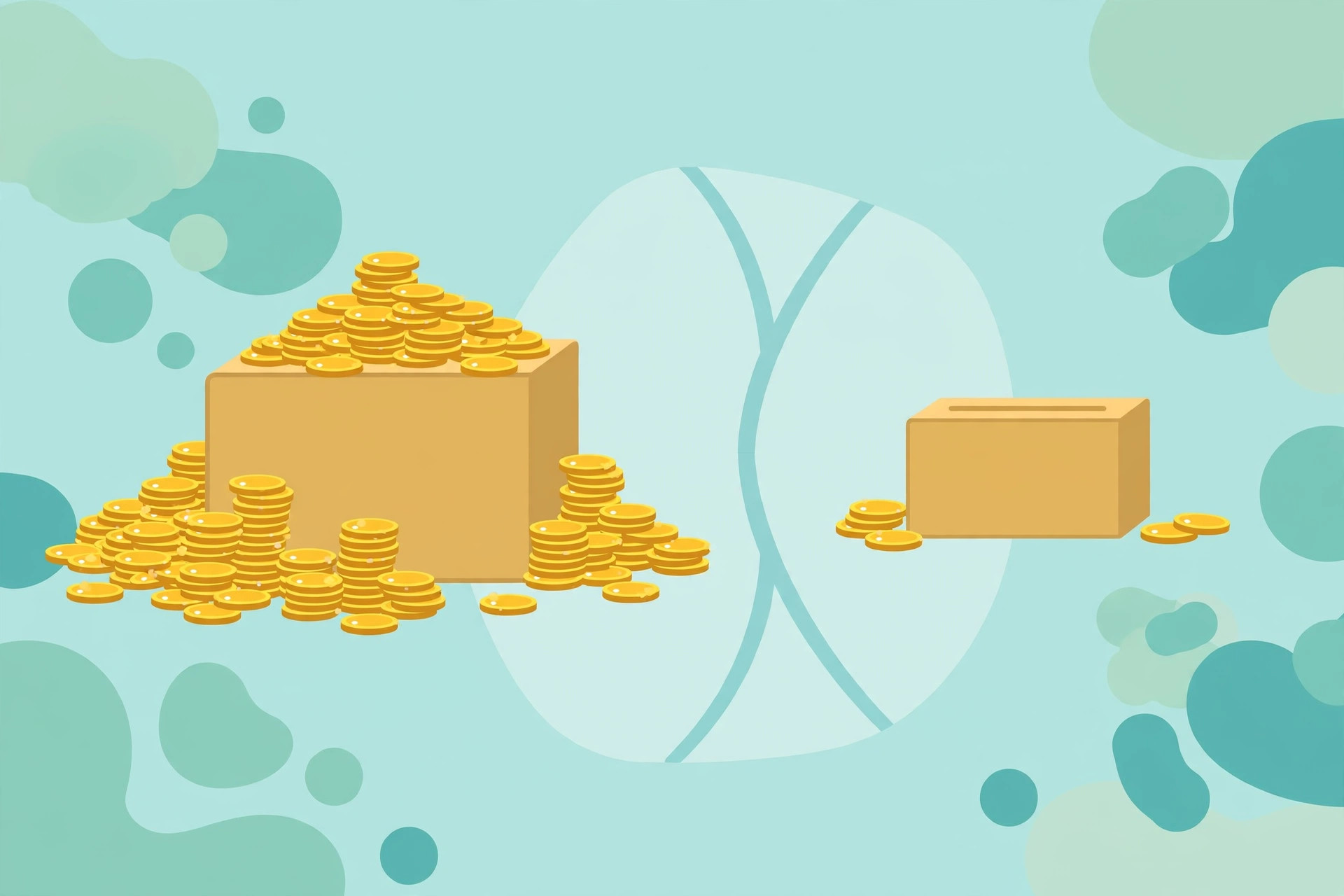
The winner for each situation
Time for clear verdicts instead of hedged "it depends":
- Photographs on a website: WebP. ~30% smaller than JPG at the same quality, universal browser support. JPG is the acceptable fallback if your pipeline can't do WebP yet.
- Photos you're emailing or archiving: JPG at quality 90+. Maximum compatibility — every device since 1992 opens a JPG — and the file sizes are reasonable. (Keep the original RAW or PNG too if it matters.)
- Logos, icons, and graphics with transparency: WebP with transparency, or PNG if you need guaranteed compatibility with older tools. Either way, never JPG.
- Screenshots: PNG for documentation and anything with text (pixel-perfect text matters); WebP for screenshots embedded in web pages where size matters.
- Images you'll edit again: PNG (graphics) or TIFF (photos). Never re-edit a JPG repeatedly — generation loss accumulates.
- Uploading to social media: JPG. The platforms recompress everything anyway; give them a high-quality JPG and let their pipeline do its thing. (Uploading PNGs to Instagram just means Instagram makes the JPG for you, slower.)
- Email newsletters: JPG for photos, PNG for logos. Some email clients still lag on WebP — check current specs for your audience's clients before switching.
A decision rule you can remember
If the two-format cheat sheet above is too much to carry around, here's the one-line version: photos get WebP (or JPG), graphics get PNG (or WebP), and JPG never touches a logo. That single sentence resolves 95% of format decisions correctly.
And one habit to build: convert at the point of export, not as an afterthought. When you export from your editor, photo editor, or design tool, pick the right format then — it's one dropdown. Converting later works fine (the Universal Image Converter Online handles it in the browser, no upload, in seconds), but choosing correctly at export saves you the round trip entirely.
The privacy footnote, briefly: image converters that run locally don't upload your photos. That matters more than people think — the images people convert include unreleased product shots, client designs, and personal photos. A browser-local converter keeps all of that on your machine. It's a small thing until it's your unreleased product on someone else's server.
Try it free — no sign-up
Run the numbers yourself in seconds. Everything happens in your browser.
Open the Universal Image Converter OnlineFrequently Asked Questions
Which is better, JPG or WebP?
WebP, for web use. At the same visual quality, WebP files are roughly 25–35% smaller than JPGs, and WebP also supports transparency (which JPG lacks). All modern browsers support WebP, so the old Safari compatibility concern no longer applies. JPG remains the safer choice only for maximum compatibility with very old software.
When should I use PNG instead of JPG?
Use PNG for logos, icons, screenshots, diagrams, text graphics, and anything needing transparency. PNG is lossless, so sharp edges stay sharp. Never use PNG for photographs — the files are 3–5x larger than JPG with no visible benefit.
Does converting JPG to WebP reduce quality?
Converting a JPG to WebP re-compresses an already-compressed image, so there's a tiny additional quality cost — but at sensible quality settings (80–85) it's invisible. For best results, convert from the original source (RAW, PNG, or the camera file) rather than from a JPG.
What is AVIF and should I use it instead of WebP?
AVIF is a newer codec that compresses about 20% better than WebP. The trade-offs: encoding is slower and browser/tool support, while growing, isn't as universal as WebP's yet. WebP is the safe default in 2026; AVIF is worth testing if you run a high-traffic image-heavy site.
Why does my logo look blurry as a JPG?
JPG's lossy compression smears sharp edges and flat colors — exactly what logos are made of. It also can't do transparency, so transparent areas become white boxes. Export logos as PNG or WebP instead.
Is it safe to convert images with a free online tool?
Yes, if the tool processes images locally in your browser. Upload-based converters receive your full image files — a real concern for unreleased work, client designs, or personal photos. Browser-local tools never transmit the image anywhere.